|
 |
Instructions for the EZ-Link Trader
One of the features of this software is the ability to easily trade links with other sites. You will probably want to put some links on your pages to other sites. Friends, businesses, and companies may be on your list. But if you are going to have their link on your pages, why not have your link on their pages? The EZ-Link Trader makes it easy to make these links. No more hassle of trying to keep track of who you sent emails to and who said they would accept. Use the EZ-Link Trader and let our software keep track of it for you.
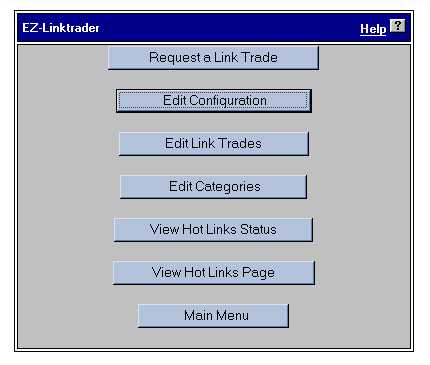
To use the EZ-Link Trader, you need to go to the Promotion Tools/EZ-Link Trader and click the 'Go' button. This will give you the following:
-NEVER USE APOSTROPHES ANYWHERE IN THE EZ-LINK TRADER-
First thing, we need to set up the configuration. Click on the 'Edit Configuration' button.
Here you will see the following:
| Title: |
| | |
Title Color: | Other Color: | |
Categories Color: | Other Color: | |
Link Exchange Number: | | |
Counter URL: | | |
Web Site Title: | | |
Web Site Description: |
|
|
Email Body
| |
Link Trade 1st Request:
| |
Link Trade 2nd Request:
|
|
Title:
| Type here what you would like as your title for this Hot Links page. Generally you can state something like "HOT LINKS!" or "OUR HOT LINKS!" or "Take your Pick.". Anything as a title for the page. However, do not use apostrophes here.
| |
Title Color:
| You can use the drop down box offered here to choose a color for your title. If we do not offer the color that you are looking for, you can type in the color name in the "Other Color:" option. However, all colors may not show up on all computers. Colors that you can see may not be seen by others, and they may come up as a color that does not look good.
| |
Categories Color:
| You can use the drop down box here to choose the color that you want every category name to be. You can also type in any other color that we do not offer into the "Other Color:" area. See the warning for "Title Color".
| |
Link Exchange Number:
| If you are part of a link exchange, you can put your Link Exchange Number here and it will put the link exchange banner on the bottom of your page.
| |
Counter URL:
| If you want to have a counter on your Hot Links page, you need to place here the URL to the hit counter graphic from the EZ-Counters. | |
Web Site Title:
| Type here the title of your WEB SITE, and not just the title of this page. The title of your Web Site is generally a name for the general products or services that you offer, or it is your company name.
| |
Web Site Description:
| Type here the description of your WEB SITE, and not the description of this page. The description of your site is set up by you to reflect the products or services that you offer.
|
|
-Email Body- | |
Link Trade 1st Request: | There is text currently placed in this block for your convenience. You can edit this text to have it say whatever you would like. This text will be sent to the people that you want to trade links with. This is what the first email will say. | |
Link Trade 2nd Request: | There is text in this block also for your convenience. This is the text that will be sent to the people that you want to trade links with on the second email. The first email will be sent right away, and the second email will be sent 10 days after the first if the first is not answered and the 'Submitted' is not changed. |
When you are done entering the information that you want, you need to click on the 'Submit' button to save your changes. If you have decided not to set up the configuration, or if you decide not to make any changes, you can click on the 'Return to Main Menu' button to return to the main menu of the EZ-Link Trader.
If you clicked on the 'Submit button', you will be taken to your 'Edit Link Trades' page. If you have no categories or link trades, there will be an error in the top left corner. This is not a problem. No matter what button you clicked on, click on the 'Edit Categories' button. If you have not set up any categories, you will get an error in the top left corner. This is not a problem.
Type in the open field the category name that you want to create. Then click on the 'Add New Category' button. -NO APOSTROPHES- If you want to edit one of the categories that you have set up, you can click on the 'Edit' link next to that category name. If you decide you no longer want that category, click on the 'Delete' link next to that category name. Once you have added all that you want, or decided that you did not want to add any more, you can click on the 'Return to Link Trades' button. At any time, you can click on the 'Return to Main Menu' button to return to the main menu of the EZ Link Trader.
This takes you to the Edit Link Trades page. You can go right back to the Categories if you click on the 'Edit Categories' button. Otherwise, click on 'Add New Link', and you will see a page with the following:
-NEVER USE APOSTROPHES ANYWHERE IN THE EZ-LINK TRADER-
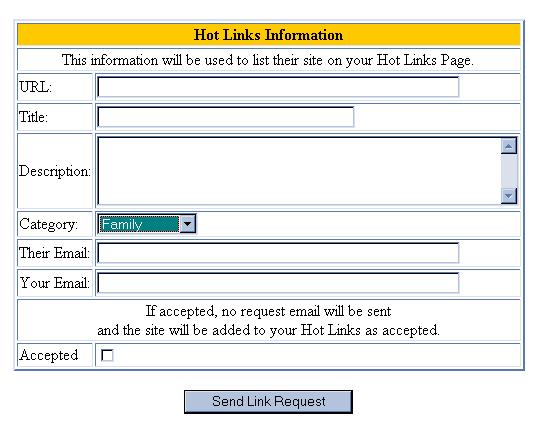
This information will be used to list their site on your Hot Links Page.
URL:
Title:
Description:
Category:
Their Email:
Your Email:
If accepted, no request email will be sent and the site will be added to your Hot Links as accepted.
URL: Type in here the URL of the page that you want to link to. You MUST type in the complete address of the site that you want to link with. (i.e.. http://amazon.com or http://hotmail.com or http://www.usbanks.com) If you fail to type in the whole address, then the links will not work properly.
Title: Type the title of the page that you want to trade links with. Generally, you can find this title at the top of the browser when you visit their site. This title will be shown to the left, next to a bullet on your Hot Links page. This title will be the link to the URL that you have placed above. There is a character limit for the title. Keep it short and meaningful. - NO APOSTROPHES!!
Description: Type in the description of the site that you want to trade links with. This description will be shown just below the Title that you placed above. - NO APOSTROPHES!!
Category: Here you will need to choose a category for this link to be in. We set up these categories earlier.
Their Email: Type in the email to the person that has the site that you are wanting to trade links with.
Your Email: Type in your email address so that they have somewhere to send the response.
Accepted: You will need to mark this radio button if you do not want this email sent out. If you have some links on your page with bigger companies, and you don't think they would put your link on their pages anyway, you can mark this as accepted and the email will not be sent out. If you do not mark this radio button, the email will be sent out.
When you are done with all of the fields, you need to click on the 'Submit' button. You will see a page with a 'Return to Main Menu' button. Click there.
Again you are at the main menu. Go to the Promotion Tools/EZ-Link Trader, and click the 'Go' button. You will see the same buttons. If you click on the 'Request a Link Trade', you will again begin the process of filling out the link trade form. If you click on the 'Edit Categories' button, you will go to the page where we created categories. Click on the 'View Hot Links Page' button. You will see a page that has been generated for you with all of the info that we have just taken care of. If this does not look like you want it to, you can go back and make changes. If it looks good, you need to click on your browsers 'Back' button to return to the menu.
We now click on the 'Edit Link Trades' button. You will notice that this is the same page that we have seen before. However, if someone emails you saying they are interested in having a link to your page on their page, you will need to come in here and click on the 'Edit' link next to their link trade. You will notice though, that there is a "Status" option across the top. This option tells you where that link trade stands. If it has been accepted, if it is still waiting a response, or if the link has been declined. Those links that you created and marked as 'Accepted', will all have the status of 'Accepted'. However, for those links to whom you sent the email, they will have a status of 'Submitted'. For those emails that have been sent out for the 2nd time, they will have the status of 'Resent'. You can click on the edit button of any on yourone of these link trades, and change the status of the link. If a page has been accepted, you will want to set the status to 'Accepted'. If the link has been declined, you should mark the link as 'Declined'.
This way you can keep track of the sites that do not want to place your link on their pages. If no one has gotten back to you about a link request, you can mark it as 'Deleted', and you can keep track of those that never got back to you. Both 'Deleted' and 'Declined' links will be left on your list of links, but they will no longer show up on your Hot Links page. All 'Submitted', 'Resent', and 'Accepted' links will show up on your page. This is where you will keep track of those. You can also change the info about each link here. After making all of the changes, you click on the 'Submit' button.
You will now be at the 'Edit Links' page. If you are done making requests and edits, you can click on the 'Return to Main Menu' button to return to the main menu of the EZ Link Trader.
You are now at the main menu of the EZ Link Trader. After you have made link requests, and edited them, you now click on the 'View Hot Links Status' button. You will see the following:
LINK TRADES
Description Total Rating
Sent First Request: 2
Sent Second Request: 0
Deleted: 4
Declined: 0
Active Trades: 6
Acceptance Percentage: 50% Very Poor
Link Status Report
Yours may not look exactly like this one, but they are all used the same. This page will tell you how many requests that you have made, how many have come back, how many have been declined or deleted, and it will tell you your standings. The 'Return to Main Menu' button will return you to the main menu of the EZ Link Trader. You can also click on the 'Link Status Report' to see another page with information. The 'Return to Main Menu' button at the bottom of the 'Link Status Report' will take you all the way out to the main menu.
|
|
| 
|
|
|
|
